
As a completely online bible study, we will be using Zoom for our face-to-face (computer-to-computer?) weekly meeting. Zoom is a program that has been heavily used since the beginning of the shut down. If you know quite a bit about it, you can skip this page (and maybe give me a pointer or two). 🙂
For those of you who have not experienced the joys and frustrations with Zoom, we wanted to create an easy-to-follow guide so you can be ready to hit the ground running!
Zoom is able to be accessed through a computer, tablet, or smart phone. The choice is yours! If you are going to use Zoom on your tablet or smart phone, please download the app on your app store of choice. After the initial download, most of the steps on here should the same or similar for you.

First Step
If you click on the Zoom logo to the left, you will be sent to their website to start your love/hate relationship with Zoom. The first time you use Zoom for a meeting or setting up an account, it will ask you to download Zoom onto your computer. If you wait until Wednesday to do so, please know it can take a couple of minutes to complete.
You do not have to have an account with Zoom to be able to join our bible study, in theory. Unfortunately, I ran into connectivity issues with Zoom meetings until I created an account. Since it is free, I chose to sign up and those issues went away. (It was more user error than an actual Zoom glitch but if you run into the same problem, signing up may solve the problem.
If you want to set up an account, you can do so easily. I included the instructions below. If not, please click here to be sent to our next page: Zooming Along!
Create that Account
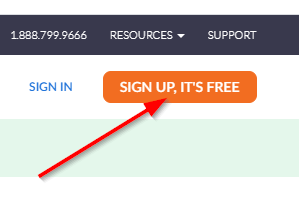
At the top right of the screen, there is a lovely orange button you will click to create your account with Zoom. There is no reason to upgrade your account with Zoom for our bible study. Whew!

Who Am I Again?!?
The very first screen will ask you for your birth date. This is just for them to know if they are setting you up for an adult or child account.
Next, you will need to enter in your email address. I recommend having that email account open as they will be sending you an activation email to be opened and the activate button selected before things can progress.
Once you get through the steps above, you will FINALLY be ready to put in your name and create a crazy password that may or may not be impossible to remember. Please ignore the goofy icons to the right of most of the lines. I cannot remember passwords so I have a program do that for me.

Skip to My Loo!
After creating your account, Zoom will ask you to invite your friends to use Zoom. By all means, invite away! But only if you will use the program for more than our Bible Study. Honestly, I would much rather talk over video than over the phone. (Real truth? I really prefer texting but that doesn’t work for Zoom. I checked.)
Next option to skip is the option to create your own meeting right away. This is super handy if you are in charge of creating meetings and are a closet procrastinator, like me. (What? Oh, it’s not a secret?!) Instead, chose Go to My Account.

And… Done!
Now, you are all setup and ready to go for Wednesday! Since this page ended up being quite long, I have decided to put the instructions for how to join our Zoom meeting on an entirely new page! So, take a look at the adorableness to the left, take a breather, maybe get a snack, and continue when you are ready. 🙂
 Dandelion Lives